Related Work Activities Panel Work Order Section Fields
If work order templates are associated to service request templates in Designer under Service Request Templates > Details > WO Templates, more fields are available to create a work order.
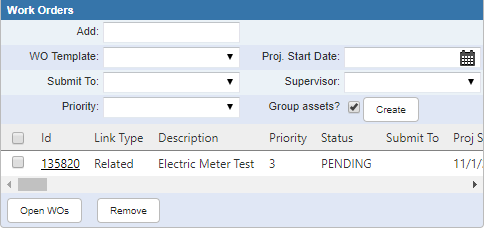
- Add: Enter a work order ID to be added to the service request.
- WO Template: Select a work order template.
- Proj. Start Date: Enter the projected start date, or select the date using the calendar icon.
- Submit To: Select an employee to submit the work to.
- Supervisor: Select a supervisor.
- Priority: Select the priority. If nothing is selected here, the work order priority is set to whatever the service request's priority is.
- Group assets?: Selected by default. If left selected, one work order is created for all the assets selected on the map. If not selected, a work order is created for each asset.
 NOTE: The Group assets? check box is only applicable if the service request template has work order templates associated to it in Designer and one of those work order templates is selected in the WO Template drop-down list.
- Create: Click to create a new work order that is automatically associated to the service request.
- Open WOs: Click to open the selected work orders.
- Remove: Click to remove a work order from the service request.